Accessing Your Quote
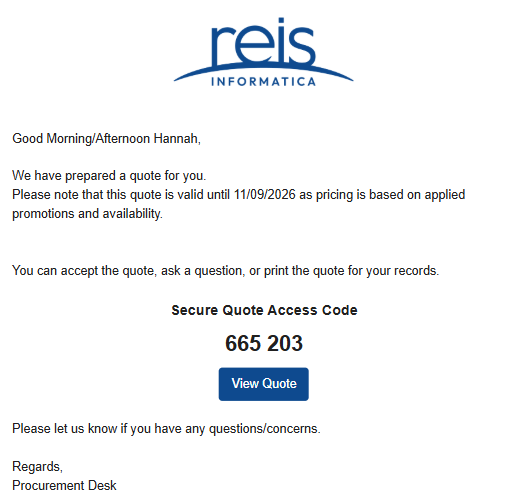
Once your quote has been prepared, you will receive an email similar to the example below. This email contains a secure access code and a View Quote button that allows you to access your quote online.
Step 1: Open the Quote Email
The quote notification email will include:
- A View Quote button
- A Secure Quote Access Code
- The quote validity date
Important: Keep the email open or make note of the access code before proceeding, as it will be required to view the quote.
Step 2: Open the Quote
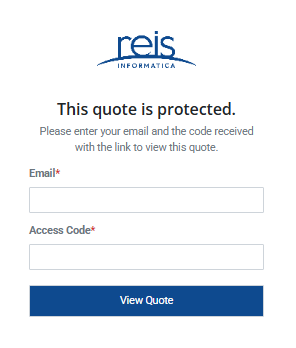
Click the View Quote button in the email. You will be directed to a secure quote access page.
Step 3: Verify Your Identity
To access the quote, enter:
- Email Address: The same email address that received the quote notification.
- Access Code: The six-digit code provided in the quote email.
After entering both fields, click View Quote.
Troubleshooting
If you are unable to access the quote:
- Confirm you are using the same email address that received the quote.
- Verify the access code was entered exactly as shown in the email.
- Check your spam or junk folder if you cannot locate the original quote email.
- Contact the Reis Informatica Procurement Desk for assistance.
Once successfully authenticated, you will be taken to the quote details page where you can review products and services, update quantities, ask questions, and choose to accept or decline the quote.