
Applies To
- End users enrolled in Phished cybersecurity awareness training
- Users who have received a welcome or training notification from hello@phished.io
- Users accessing Phished Academy with a work email address
- Organizations using Microsoft or Google as their primary information tenant
Before You Begin
You will need:
- Access to your work email
- Your Phished welcome or training notification
- An internet connection and web browser
- Access to your organization’s Microsoft or Google account when using single sign-on
Phished may send simulated phishing emails as safe practice exercises. If you interact with a simulation, Phished provides immediate feedback.
Access Phished Academy
1. Open your welcome email
Look for an email from hello@phished.io with the subject “Welcome to the Phished Cyber Resilience Training.” Select the training link in the email to open Phished Academy.
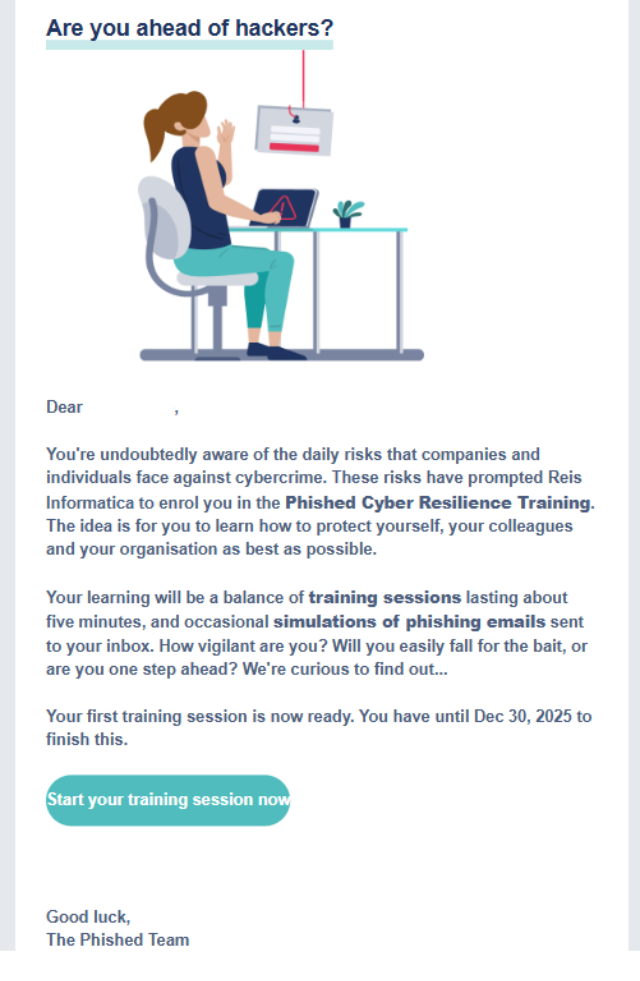
Figure 1. Example Phished welcome email with academy link.
2. Sign in to Phished Academy
Access the academy at https://phishedacademy.io/. If your organization uses Microsoft or Google as its primary information tenant, single sign-on will be enabled. You can sign in with your existing work account without creating a separate Phished password.
- Select the Microsoft or Google sign-in option shown on the login page.
- Enter your work account information if prompted.
- Complete your organization’s authentication process.
- Confirm that the Phished Academy dashboard appears.
If Phished sends a secure sign-in link to your email instead, open that link to access the academy.
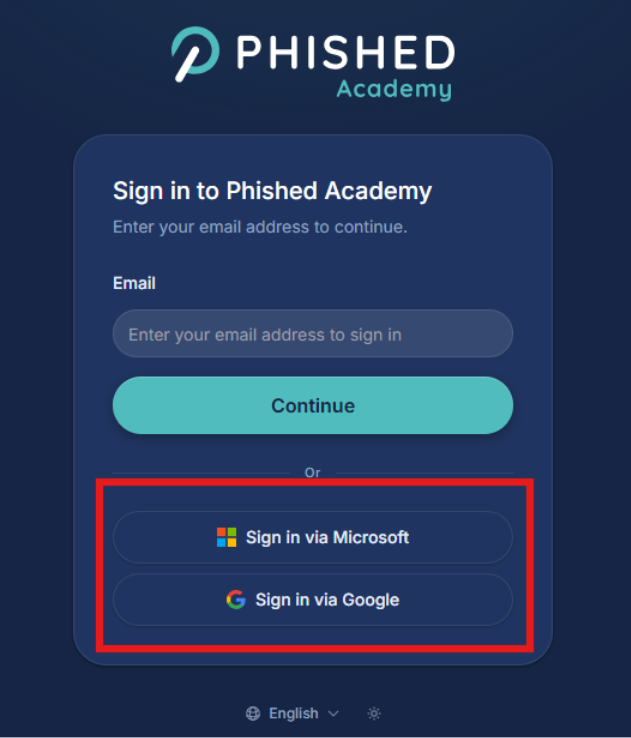
Figure 2. Phished Academy sign-in page with single sign-on options.
3. Review your dashboard
Use the navigation menu on the left side of the dashboard to access:
- Assigned training courses
- Optional threat-awareness content
- Your recommended learning path
- Your Behavioural Risk Score
The main area displays outstanding training and other items requiring your attention.
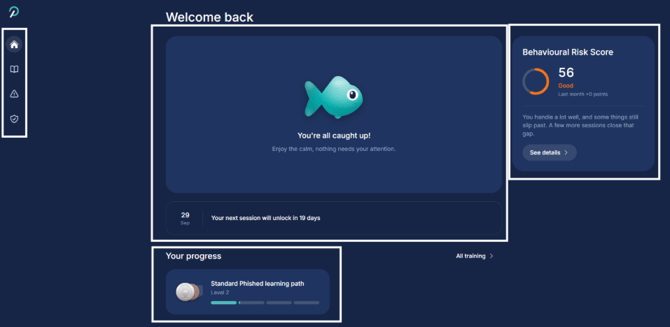
Figure 3. Phished dashboard with key navigation and training areas highlighted.
4. Complete your assigned training
Training notifications will arrive every two to four weeks. When a new training session becomes available:
- Open the notification email from Phished.
- Select Start your training session now.
- Alternatively, sign in at https://phishedacademy.io/ and open the outstanding session.
- Complete the training by the due date shown.
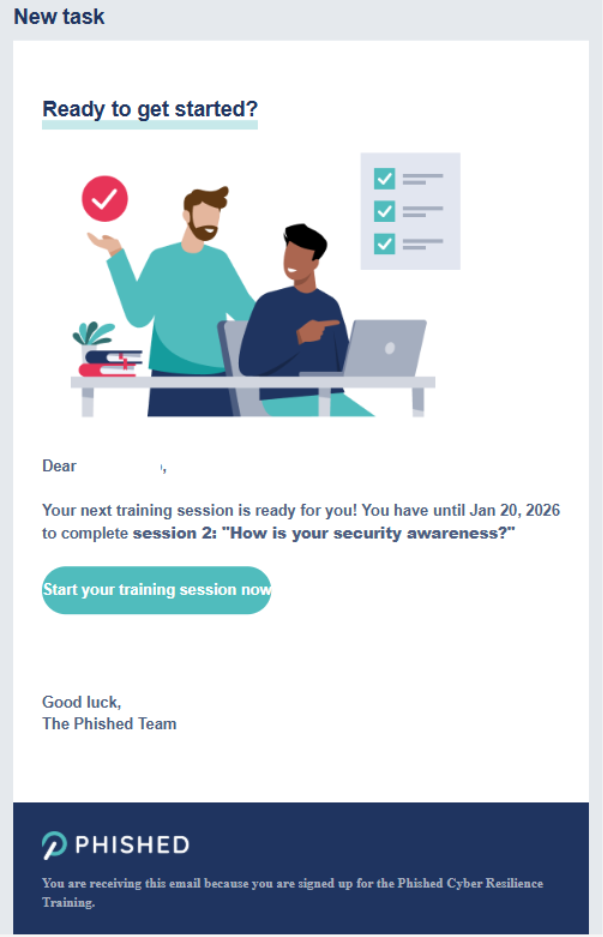
Figure 4. Example email notifying a user of new training.
Reporting Phishing Simulations and Phishing Emails
Please note your team will need to have the Phished.io Button enabled for this feature to be available.
If you suspect an email is a Phished.io Simulation or an actual phishing email, report it using the Phished.io Button.
- Safe Phished.io Simulation - you will receive instant feedback.
- Real phishing or spam - the email will process through advanced blockers to prevent reoccurence.
Steps:
- Click the Phished.io Button on the top right of the Outlook window.
- Under the Report email section, Select “Report Phishing" or "Report Spam".
- The email will be moved to your spam or junk folder.
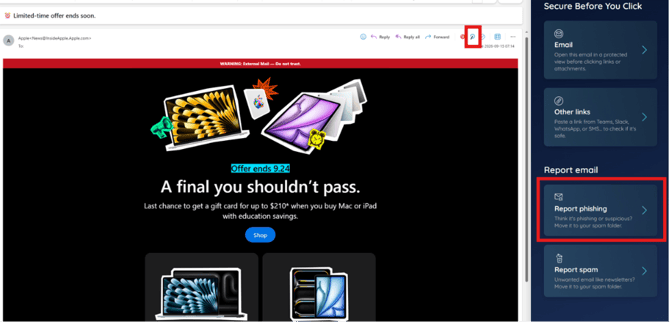
Figure 5. How to access and report an email via the Phished.io Button
Respond to Phishing Simulations
Phishing simulation emails are safe practice exercises designed to help you recognize suspicious messages. If you interact with a simulated phishing message:
- Review the immediate feedback provided by Phished.
- Read the explanation of the warning signs.
- Complete any follow-up questions or learning activity.
- Apply the guidance when reviewing future emails.
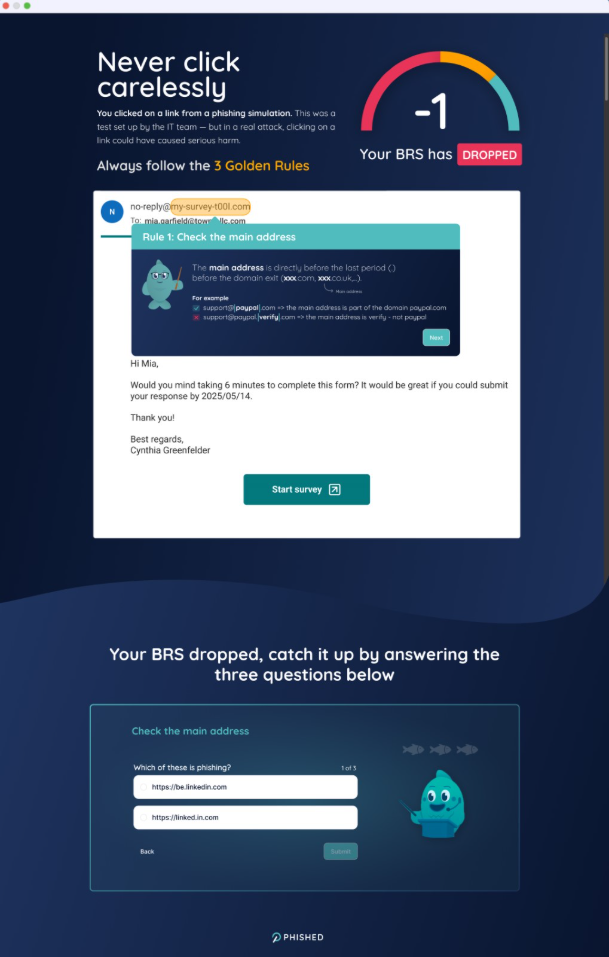
Figure 6. Example feedback after interacting with a phishing simulation.
Understand Your Behavioural Risk Score
Your Behavioural Risk Score, or BRS, reflects your cybersecurity risk and helps guide your learning. You can positively influence your score by:
- Reporting phishing simulations
- Completing assigned training on time
- Reviewing optional threat-awareness content
- Following your recommended learning path
Important Notes
- Phished simulation emails are training exercises and do not contain a real phishing threat.
- Continue to treat unexpected or suspicious messages carefully because real phishing emails may also reach your inbox.
- Do not enter credentials after following a suspicious link unless the website is confirmed as legitimate.
- If you are uncertain whether an email is legitimate, contact help@reisinformatica.com before interacting with it.
- Your organization’s authentication requirements may appear when using Microsoft or Google single sign-on.
Troubleshooting
I did not receive my welcome or training email
- Check your Junk Email or Spam folder.
- Search for messages from hello@phished.io.
- Sign in at https://phishedacademy.io/ with your work account.
- If access is still unavailable, contact help@reisinformatica.com.
I cannot sign in with single sign-on
- Select the Microsoft or Google option used by your organization.
- Use your organization-issued work account.
- Complete any multi-factor authentication request.
- If access remains unsuccessful, contact help@reisinformatica.com.
I am unsure whether an email is a simulation
Do not select links, open attachments, reply, or provide information until the message has been reviewed. Contact help@reisinformatica.com for assistance.